このバージョンの GitHub Enterprise サーバーはこの日付をもって終了となりました: 2026-03-17. 重大なセキュリティの問題に対してであっても、パッチリリースは作成されません。 パフォーマンスの向上、セキュリティの向上、新機能の向上を図るために、最新バージョンの GitHub Enterprise サーバーにアップグレードしてください。 アップグレードに関するヘルプについては、GitHub Enterprise サポートにお問い合わせください

GitHub Desktop用のテーマ設定方法

テーマを設定して、GitHub Desktopの見た目をカスタマイズできます。

Platform navigation

  1. In the menu bar, select GitHub Desktop, then click Settings.
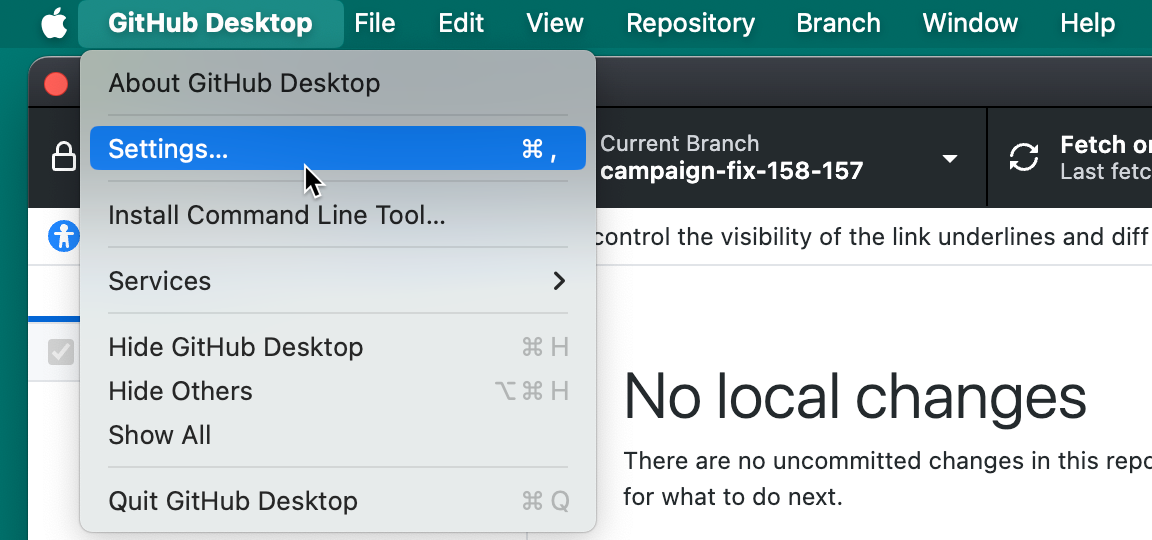
    Screenshot of the menu bar on a Mac. Under the open "GitHub Desktop" dropdown menu, the cursor hovers over "Settings", which is highlighted in blue.

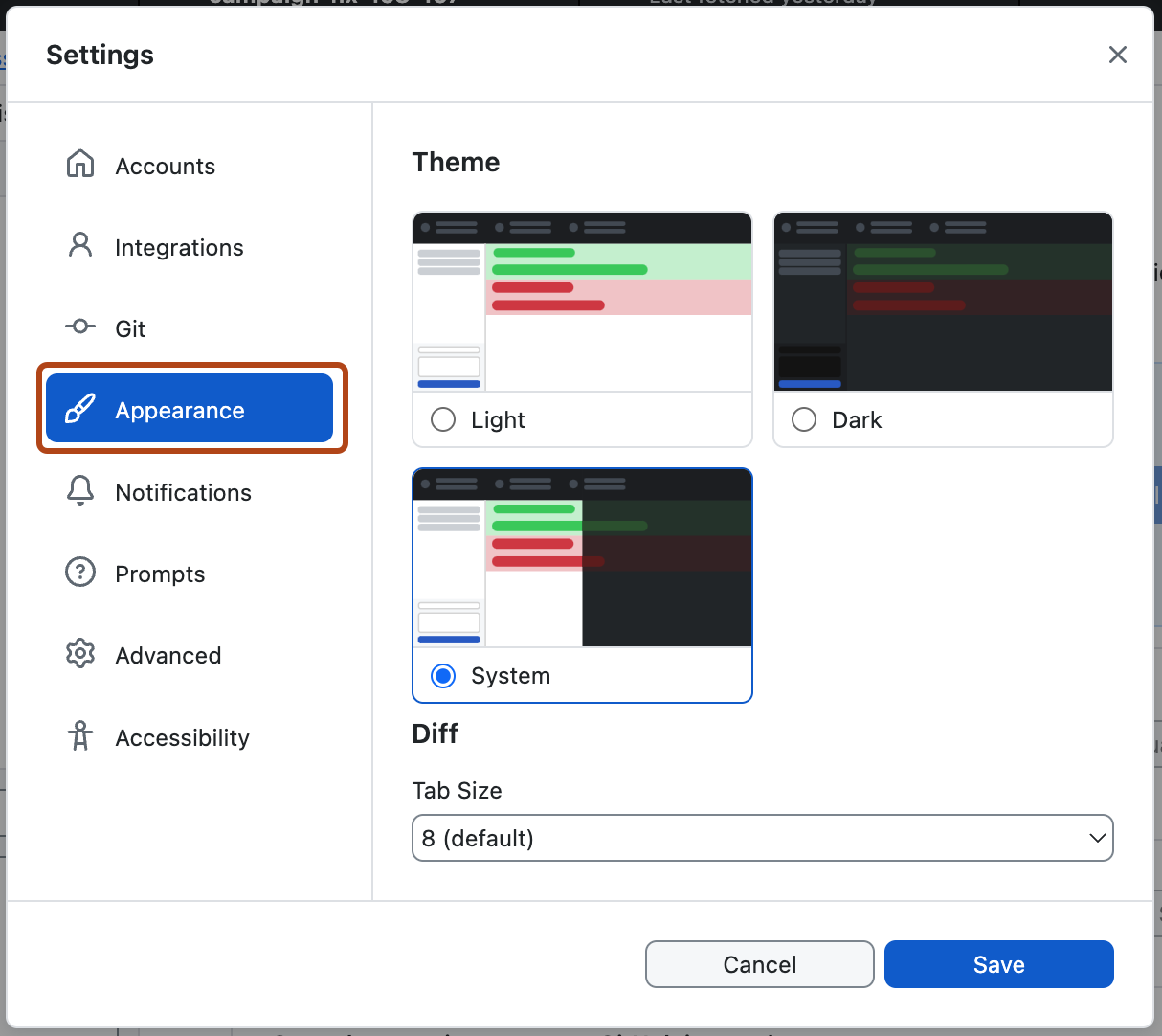
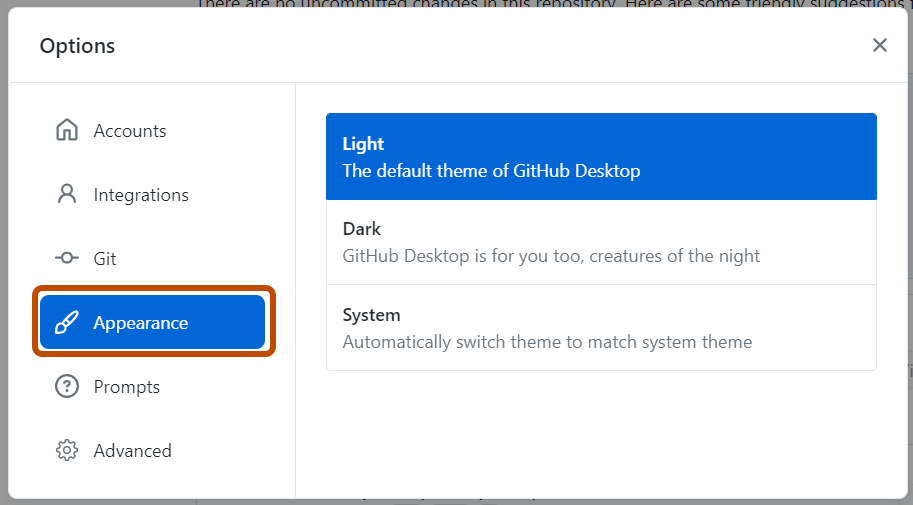
  2. Click the Appearance pane.

    Screenshot of the "Settings" window. In the left sidebar, the "Appearance" option is highlighted in blue and outlined in orange.

    Screenshot of the "Options" window. In the left sidebar, the "Appearance" option is highlighted in blue and outlined in orange.

  3. Click the theme you'd like to use. If you want GitHub Desktop to always match the theme on your computer, select System.

  1. Use the File menu, then click Options.

    Screenshot of the "GitHub Desktop" menu bar on Windows. In the expanded "File" dropdown menu, the "Options" item is outlined in orange.

  2. Click the Appearance pane.

    Screenshot of the "Settings" window. In the left sidebar, the "Appearance" option is highlighted in blue and outlined in orange.

    Screenshot of the "Options" window. In the left sidebar, the "Appearance" option is highlighted in blue and outlined in orange.

  3. Click the theme you'd like to use. If you want GitHub Desktop to always match the theme on your computer, select System.