If you do not need a highly customizable code scanning configuration, consider using default setup for code scanning. For more information, see コード スキャンのセットアップの種類について.
Prerequisites
Your repository is eligible for advanced setup if it meets these requirements.
- It uses CodeQL-supported languages or you plan to generate code scanning results with a third-party tool.
- GitHub Actions が有効になっています。
- 一般公開されているか、GitHub Code Security が有効になっている。
Configuring advanced setup for code scanning with CodeQL
You can customize your CodeQL analysis by creating and editing a workflow file. Selecting advanced setup generates a basic workflow file for you to customize using standard workflow syntax and specifying options for the CodeQL action. See ワークフロー and コード スキャンのワークフロー構成オプション.
アクションを使用して code scanning を実行すると、分が使用されます。 詳細については、「GitHub Actions の課金」を参照してください。
メモ
You can configure code scanning for any public repository where you have write access.
-
GitHub で、リポジトリのメイン ページに移動します。
-
リポジトリ名の下にある [Settings] をクリックします。 [設定] タブが表示されない場合は、 [] ドロップダウン メニューを選び、 [設定] をクリックします。
![タブを示すリポジトリ ヘッダーのスクリーンショット。 [設定] タブが濃いオレンジ色の枠線で強調表示されています。](/assets/cb-28260/images/help/repository/repo-actions-settings.png)
-
サイドバーの [Security] セクションで、[ Advanced Security] をクリックします。
-
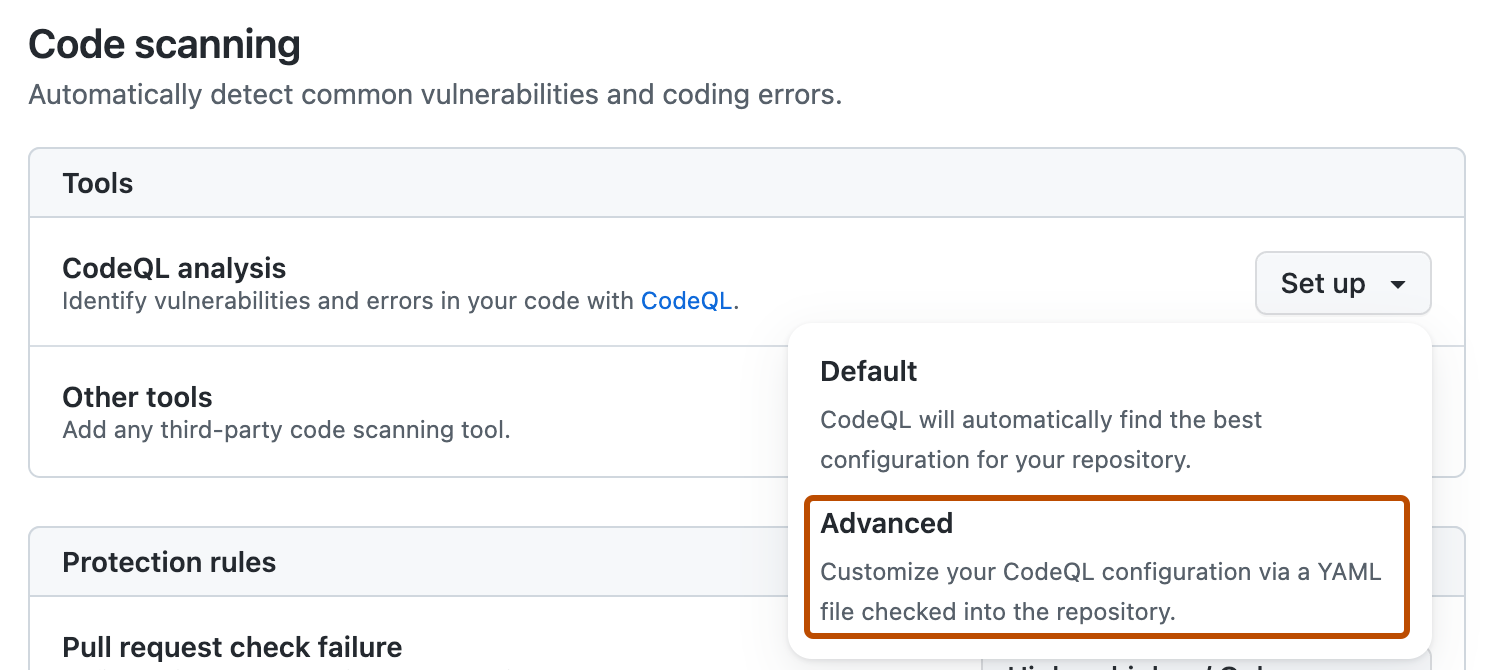
Scroll down to "Code Security", in the "CodeQL analysis" row select Set up , then click Advanced.
メモ
If you are switching from default setup to advanced setup, in the "CodeQL analysis" row, select , then click Switch to advanced. In the pop-up window that appears, click Disable CodeQL.
-
To customize how code scanning scans your code, edit the workflow.
Generally, you can commit the CodeQL 分析ワークフロー without making any changes to it. However, many of the third-party workflows require additional configuration, so read the comments in the workflow before committing.
For more information, see コード スキャンのワークフロー構成オプション and CodeQL code scanning for compiled languages.
-
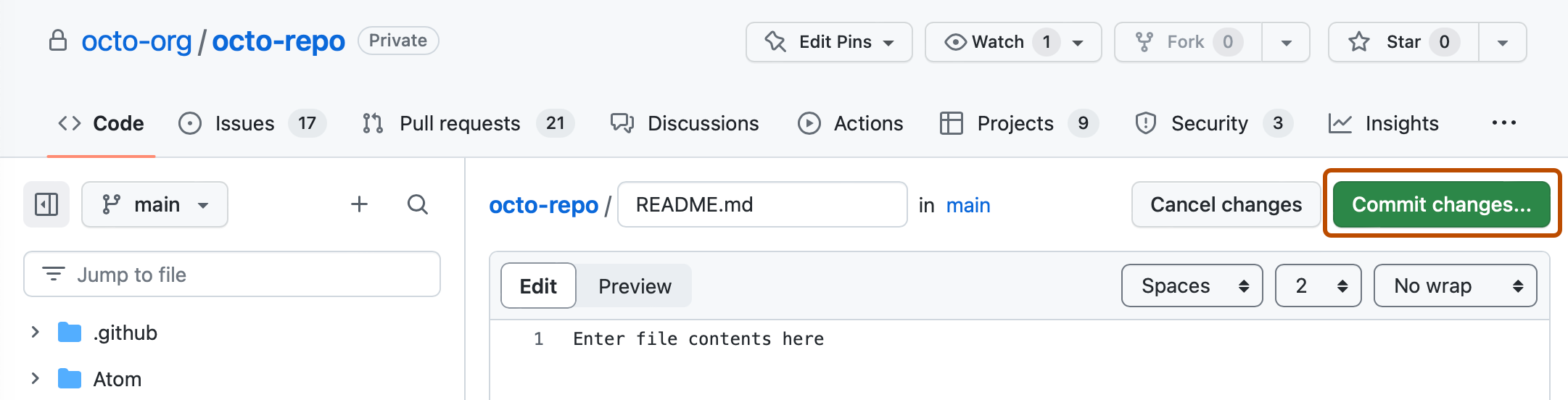
Click Commit changes... to display the commit changes form.
-
In the commit message field, type a commit message.
-
Choose whether you'd like to commit directly to the default branch, or create a new branch and start a pull request.
-
Click Commit new file to commit the workflow file to the default branch or click Propose new file to commit the file to a new branch.
-
If you created a new branch, click Create pull request and open a pull request to merge your change into the default branch.
![タブを示すリポジトリ ヘッダーのスクリーンショット。 [設定] タブが濃いオレンジ色の枠線で強調表示されています。](/assets/cb-28260/mw-1440/images/help/repository/repo-actions-settings.webp)


In the suggested CodeQL 分析ワークフロー, code scanning is configured to analyze your code each time you either push a change to the default branch or any protected branches, or raise a pull request against the default branch. As a result, code scanning will now commence.
The on:pull_request and on:push triggers for code scanning are each useful for different purposes. See コード スキャンのワークフロー構成オプション and ワークフローをトリガーする.
For information on bulk enablement, see CodeQL で大規模にコード スキャンの高度なセットアップを構成する.
Configuring code scanning using third-party actions
GitHub includes workflow templates for third-party actions, as well as the CodeQL action. Using a workflow template is much easier than writing a workflow unaided.
アクションを使用して code scanning を実行すると、分が使用されます。 詳細については、「GitHub Actions の課金」を参照してください。
-
GitHub で、リポジトリのメイン ページに移動します。
-
リポジトリ名の下にある [ Actions] をクリックします。
!["github/docs" リポジトリのタブのスクリーンショット。 [アクション] タブがオレンジ色の枠線で強調表示されています。](/assets/cb-12958/images/help/repository/actions-tab-global-nav-update.png)
-
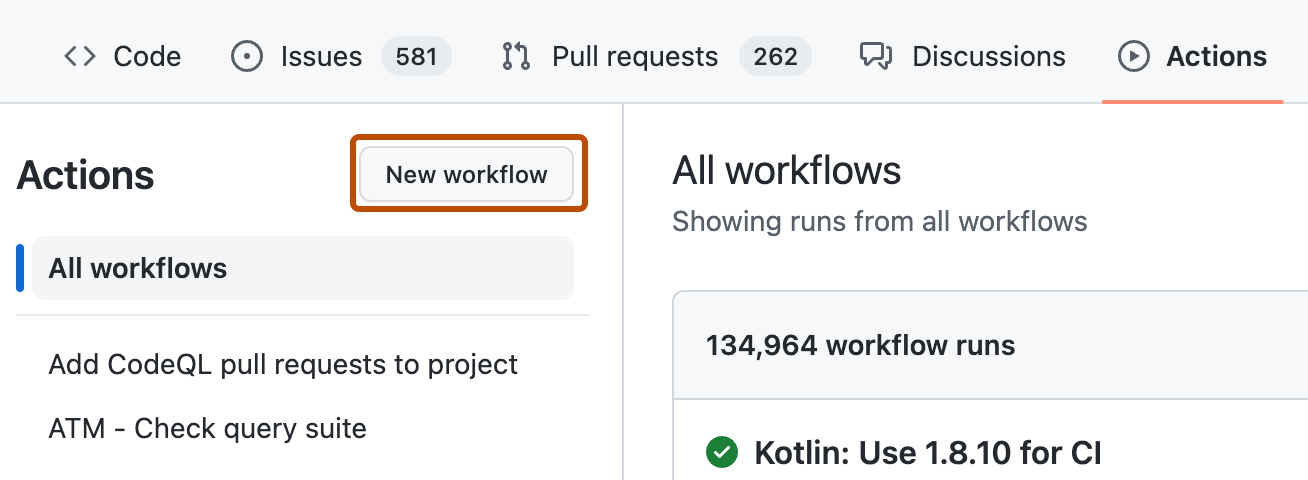
If the repository has already at least one workflow configured and running, click New workflow to display workflow templates. If there are currently no workflows configured for the repository, go to the next step.
-
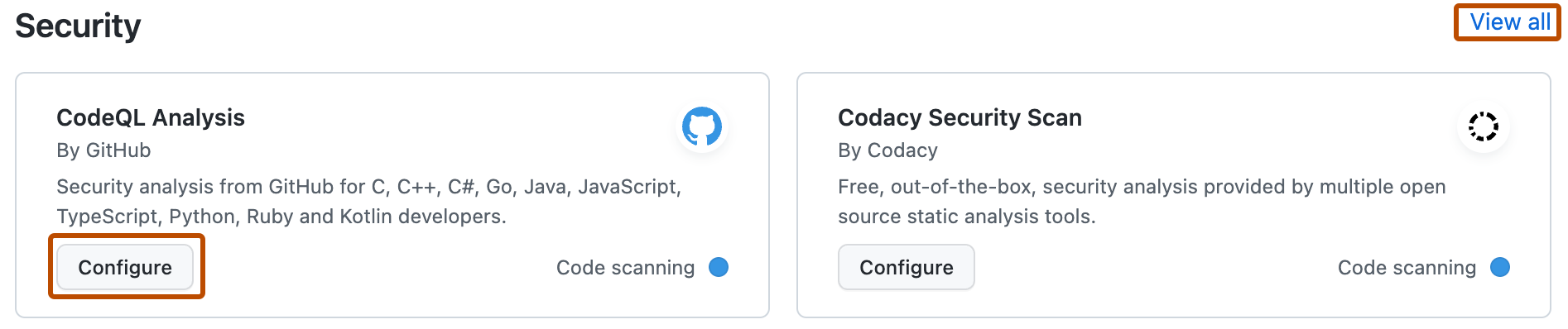
In the "Choose a workflow" or "Get started with GitHub Actions" view, scroll down to the "Security" category and click Configure under the workflow you want to configure. You may need to click View all to find the security workflow you want to configure.
-
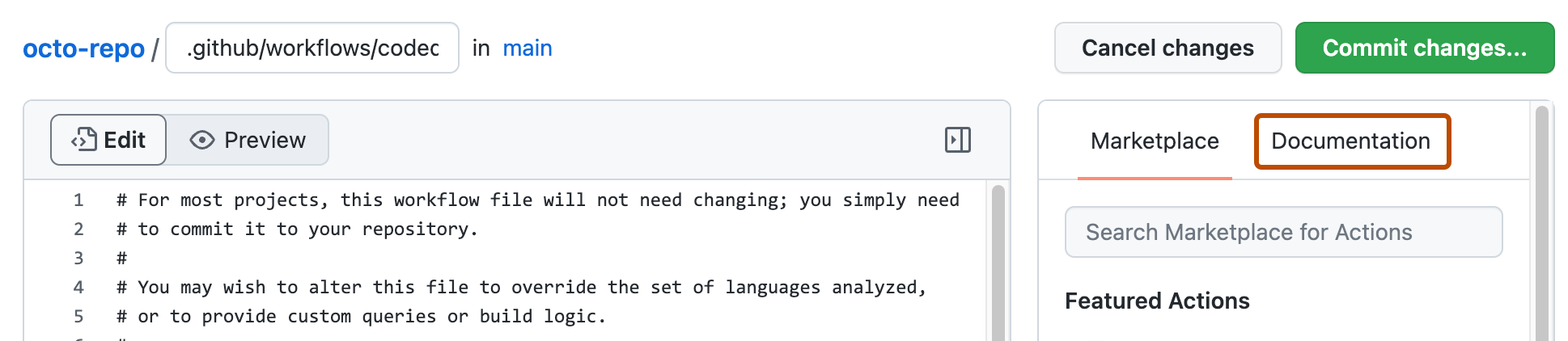
Follow any instructions in the workflow to customize it to your needs. For more general assistance about workflows, click Documentation on the right pane of the workflow page.
-
When you have finished defining your configuration, add the new workflow to your default branch.
For more information, see ワークフロー テンプレートの使用 and コード スキャンのワークフロー構成オプション.
!["github/docs" リポジトリのタブのスクリーンショット。 [アクション] タブがオレンジ色の枠線で強調表示されています。](/assets/cb-12958/mw-1440/images/help/repository/actions-tab-global-nav-update.webp)


Next steps
After your workflow runs successfully at least once, you are ready to start examining and resolving code scanning alerts. For more information on code scanning alerts, see Code scanningアラートについて and リポジトリのコード スキャンのアラートの評価.
Learn how code scanning runs behave as checks on pull requests, see Pull RequestでCode scanningアラートをトリアージする.
You can find detailed information about your code scanning configuration, including timestamps for each scan and the percentage of files scanned, on the tool status page. For more information, see Use the tool status page for code scanning.